Featured image of post Rplicate Series: Bold Axis & Character with ggplot2

Rplicate Series: Bold Axis & Character with ggplot2

Dyah Nurlita S

Welcome again to the Rplicate Series! In this 6th article of the series, we will replicate The Economist plot titled “Marvellous”. In the process, we will explore ways to use bold text and characters for our axes. Let’s dive in below!

Load Packages

These are the packages and some set up that we will use.

 1
 2
 3
 4
 5
 6
 7
 8
 9
10
11
library(tidyverse) # for data wrangling
library(ggplot2) # for data visualization
library(scales) # to customize axes in plot
library(ggrepel) # add & customize repelled text
library(grid) # create grid & enhance the layouting of plot
library(gridExtra) 
library(png) # import plot to image
library(extrafont) # font library

# load font from local
font_import() # type y when asked to import
1
2
#> Importing fonts may take a few minutes, depending on the number of fonts and the speed of the system.
#> Continue? [y/n]
1
2
3
4
loadfonts(device = "win")

# to prevent R displaying scientific notation
options(scipen = 100) 

Dataset

The plot that we are going to replicate comes from this article. It contains information about sales and market shares of Disney Box Office in United States, Canada, and around the world in the year of 2019.

First Plot (Bar Plot)

Data Wrangling

Before making a visualization, let’s prepare and clean the data:

1
2
3
# read csv
box_office_sales <- read_csv("data_input/rplicate6/box office sales 2019.csv")
head(box_office_sales)
 1
 2
 3
 4
 5
 6
 7
 8
 9
10
#> # A tibble: 6 × 6
#>    Rank Movie                     `Worldwide Box Office` `Domestic Box Office`
#>   <dbl> <chr>                     <chr>                  <chr>                
#> 1     1 Avengers: Endgame         $2,797,800,564         $858,373,000         
#> 2     2 The Lion King             $1,656,313,097         $543,638,043         
#> 3     3 Frozen II                 $1,430,769,340         $474,900,703         
#> 4     4 Spider-Man: Far From Home $1,131,927,996         $390,532,085         
#> 5     5 Captain Marvel            $1,129,729,839         $426,829,839         
#> 6     6 Toy Story 4               $1,073,394,813         $434,038,008         
#> # ℹ 2 more variables: `International Box Office` <chr>, `Domestic Share` <chr>

In this visualization, we only use the first 11 row of data and column Movie, Worldwide Box Office, and International Box Office. Therefore let’s select these data and rename some column.

1
2
3
4
5
data_1 <- head(box_office_sales, 11) %>% 
  select(Movie,
         'Domestic Box Office',
         'International Box Office')
data_1
 1
 2
 3
 4
 5
 6
 7
 8
 9
10
11
12
13
14
15
#> # A tibble: 11 × 3
#>    Movie                            `Domestic Box Office` International Box Of…¹
#>    <chr>                            <chr>                 <chr>                 
#>  1 Avengers: Endgame                $858,373,000          $1,939,427,564        
#>  2 The Lion King                    $543,638,043          $1,112,675,054        
#>  3 Frozen II                        $474,900,703          $955,868,637          
#>  4 Spider-Man: Far From Home        $390,532,085          $741,395,911          
#>  5 Captain Marvel                   $426,829,839          $702,900,000          
#>  6 Toy Story 4                      $434,038,008          $639,356,805          
#>  7 Joker                            $335,251,773          $736,645,941          
#>  8 Star Wars: The Rise of Skywalker $511,874,363          $548,577,048          
#>  9 Aladdin                          $355,559,216          $695,400,000          
#> 10 Jumanji: The Next Level          $301,861,286          $468,828,061          
#> 11 Fast & Furious Presents: Hobbs … $173,956,935          $586,625,355          
#> # ℹ abbreviated name: ¹​`International Box Office`

Since there’s no information about “Jumanji” movie inside the plot, it is best to remove it from the data.

1
data_box_office <- data_1 %>% filter(Movie !='Jumanji: The Next Level')

Next, we will also perform some string manipulation to replace special character like “$” and “,” into a blank space. This is to make sure that we can convert the columns into its correct data type.

1
2
3
4
5
6
7
data_box_office[,c(2,3)]<- lapply(data_box_office[,c(2,3)], 
                                  function(x) gsub('\\$', '', x))
data_box_office[,c(2,3)]<- lapply(data_box_office[,c(2,3)], 
                                  function(x) gsub('\\,', '', x))
data_box_office[-1] <- lapply(data_box_office[-1], as.numeric)

head(data_box_office, 3)
1
2
3
4
5
6
#> # A tibble: 3 × 3
#>   Movie             `Domestic Box Office` `International Box Office`
#>   <chr>                             <dbl>                      <dbl>
#> 1 Avengers: Endgame             858373000                 1939427564
#> 2 The Lion King                 543638043                 1112675054
#> 3 Frozen II                     474900703                  955868637

Now, let’s also transform the original wide-format data frame into its long-format for easier plotting.

1
2
3
4
5
6
7
8
9
#> # A tibble: 6 × 3
#>   Movie             revenue_type                  value
#>   <chr>             <chr>                         <dbl>
#> 1 Avengers: Endgame Domestic Box Office       858373000
#> 2 Avengers: Endgame International Box Office 1939427564
#> 3 The Lion King     Domestic Box Office       543638043
#> 4 The Lion King     International Box Office 1112675054
#> 5 Frozen II         Domestic Box Office       474900703
#> 6 Frozen II         International Box Office  955868637

Create Visualization

 1
 2
 3
 4
 5
 6
 7
 8
 9
10
11
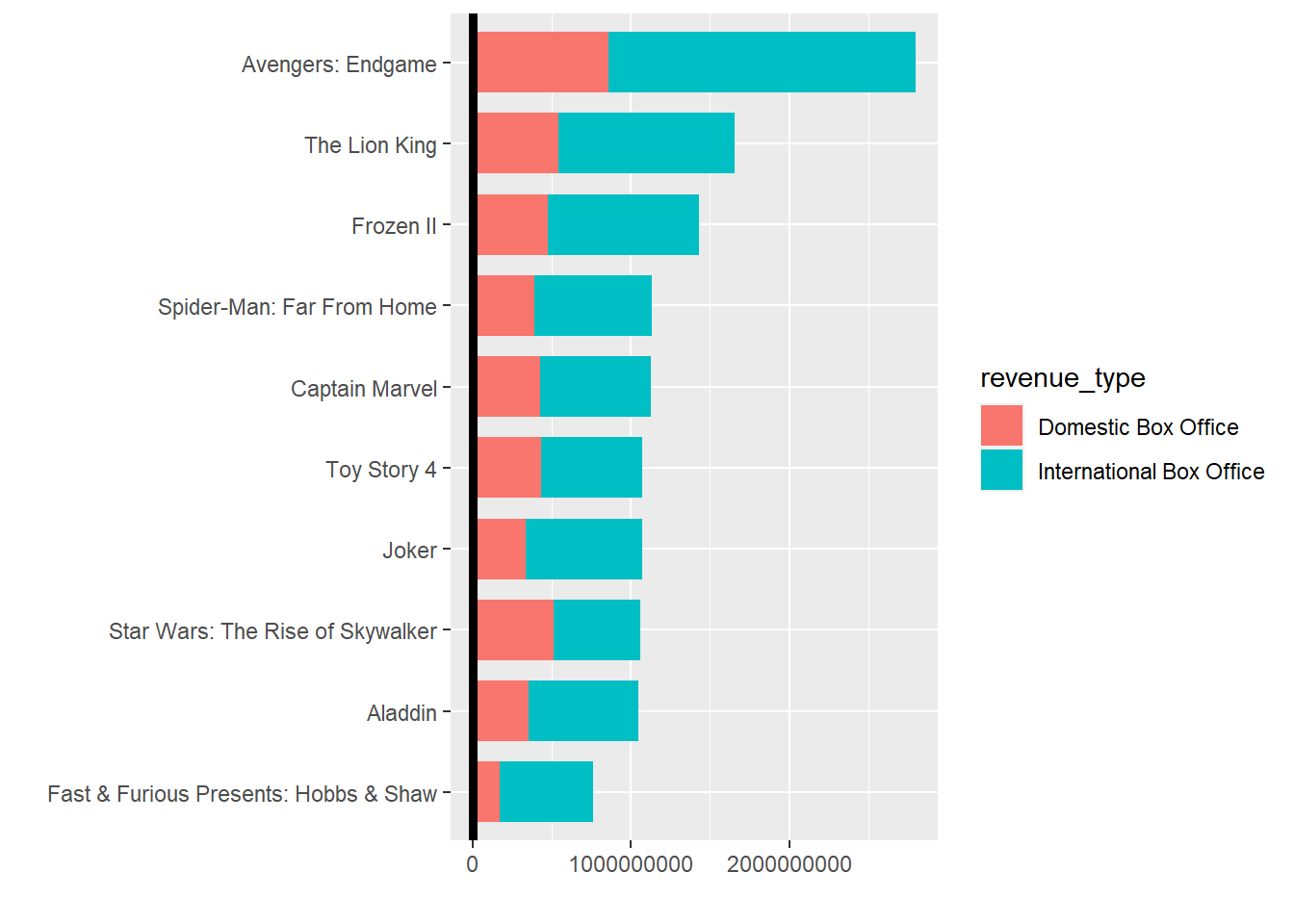
plot_bar <- ggplot(data = data_plot,
                   aes(x = reorder(Movie, value), y = value)) +
  coord_flip() +
  geom_col(aes(fill = revenue_type),
           position = position_stack(reverse = TRUE),
           width = 0.75) +
  geom_hline(yintercept = 0,
             lwd = 1.75) +
  labs(x = "",
       y = "")
plot_bar

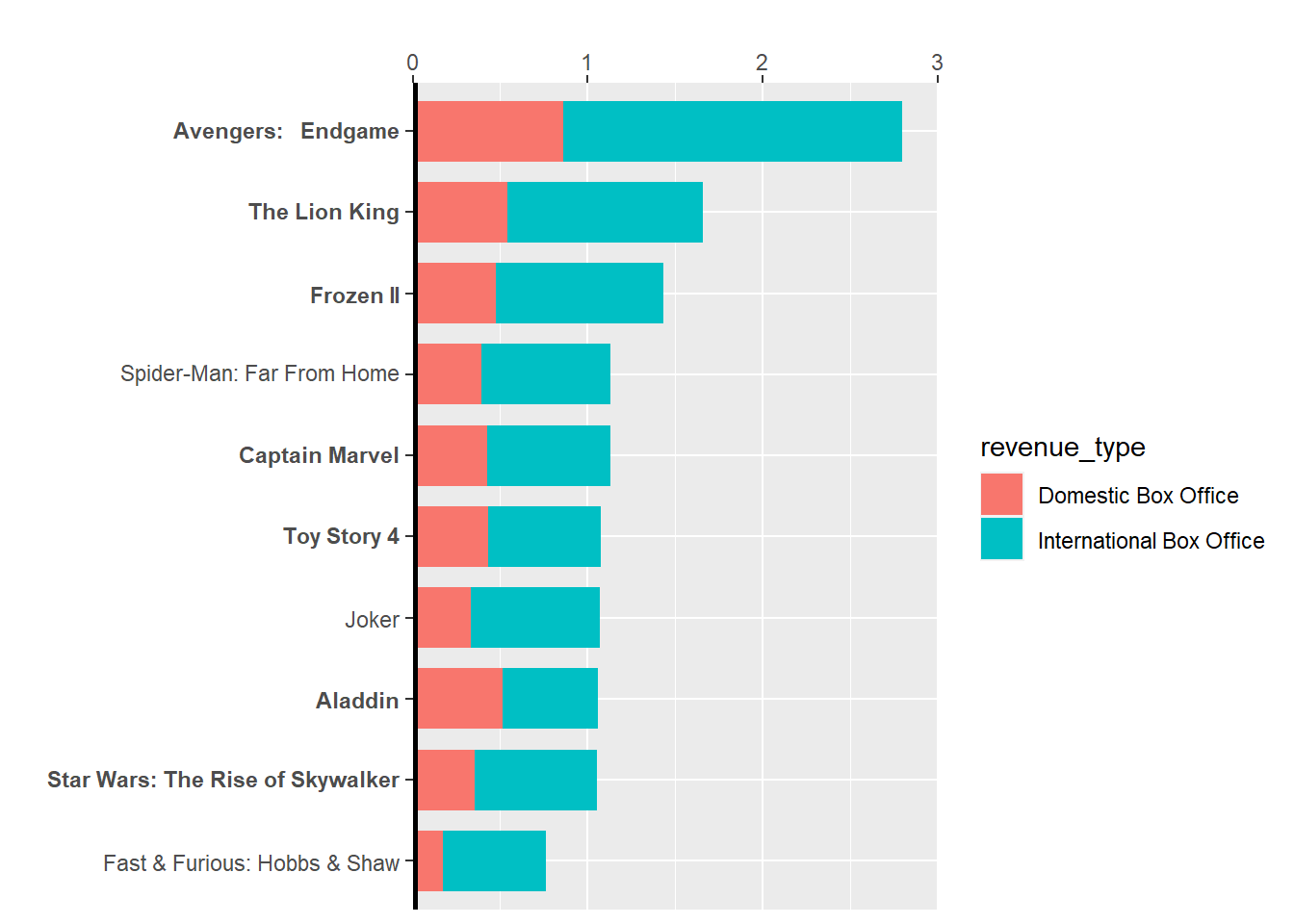
We need to declare specific format for x-axis and y-axis text. Namely, bold character for specific movie and additional “>” character with its red color. We can use function expression(). Here is the code below:

 1
 2
 3
 4
 5
 6
 7
 8
 9
10
11
12
13
14
15
16
17
18
19
20
plot_bar <- plot_bar +
   scale_x_discrete(labels = rev(
     c(expression(paste(bold("Avengers:   Endgame"))), # adding bold format
       expression(paste(bold("The Lion King"))),
       expression(paste(bold("Frozen II"))),
       expression(paste("Spider-Man: Far From Home")),
       expression(paste(bold("Captain Marvel"))),
       expression(paste(bold("Toy Story 4"))),
       expression(paste("Joker")),
       expression(paste(bold("Aladdin"))),
       expression(paste(bold("Star Wars: The Rise of Skywalker"))),
       expression(paste("Fast & Furious: Hobbs & Shaw")))
                  )) +
  scale_y_continuous(limits = c(0, 3000000000),
                     labels = c("0","1","2","3"),
                     expand = c(0, 2), # adjust additional space after axis limits
                     position = "right" # makes it on top (because of coord_flip())
                     )

plot_bar
1
2
3
4
5
6
7
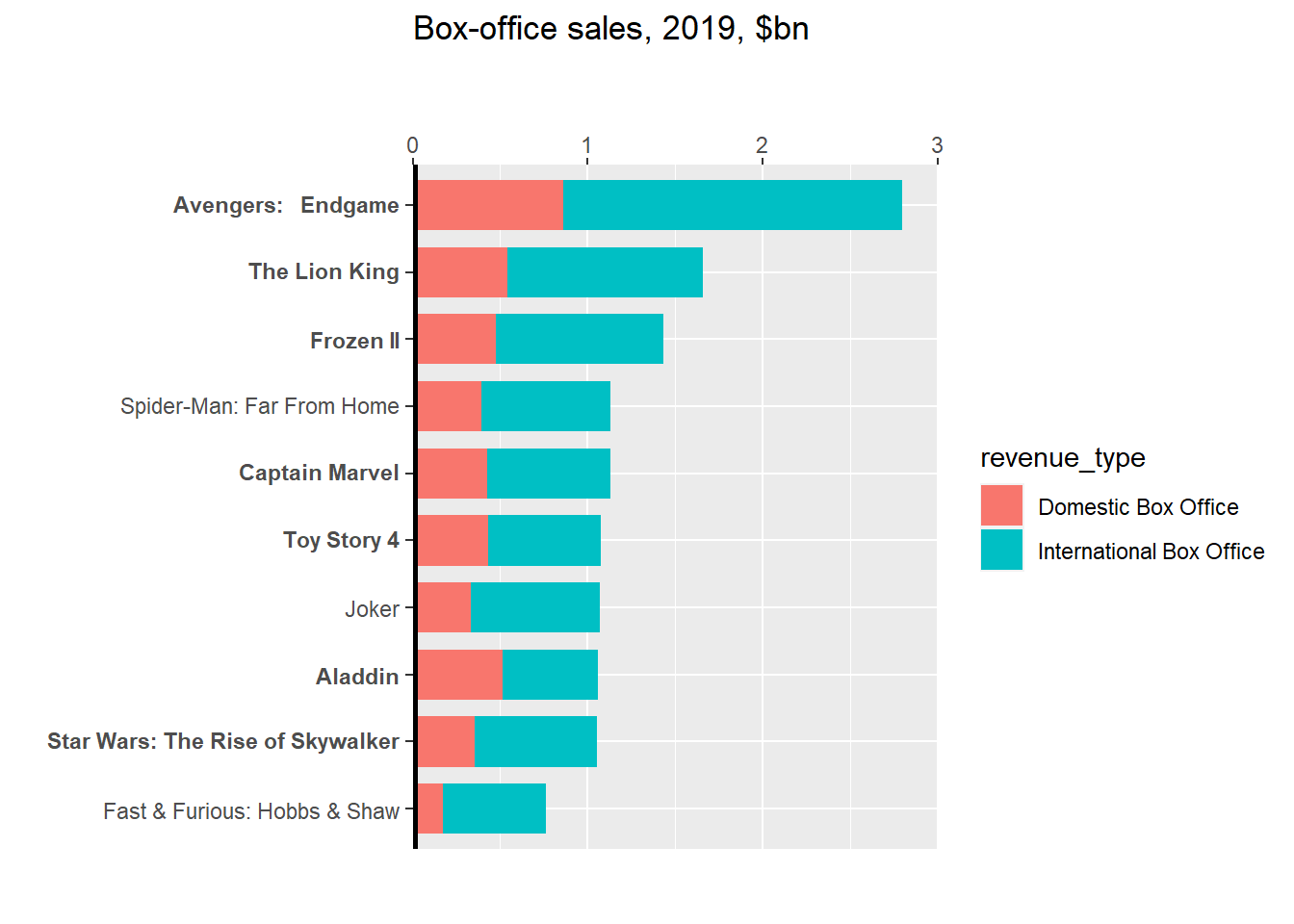
plot_bar <-
  plot_bar +
  labs(title = "Box-office sales, 2019, $bn \n",
       caption_left = " \n") # \n adding empty line in left side of the plot 
                             # to position ">" character later)    

plot_bar
And then we can apply theme into the plot:
 1
 2
 3
 4
 5
 6
 7
 8
 9
10
11
12
13
14
15
16
17
18
19
20
21
22
23
24
25
26
27
28
29
30
31
32
33
34
35
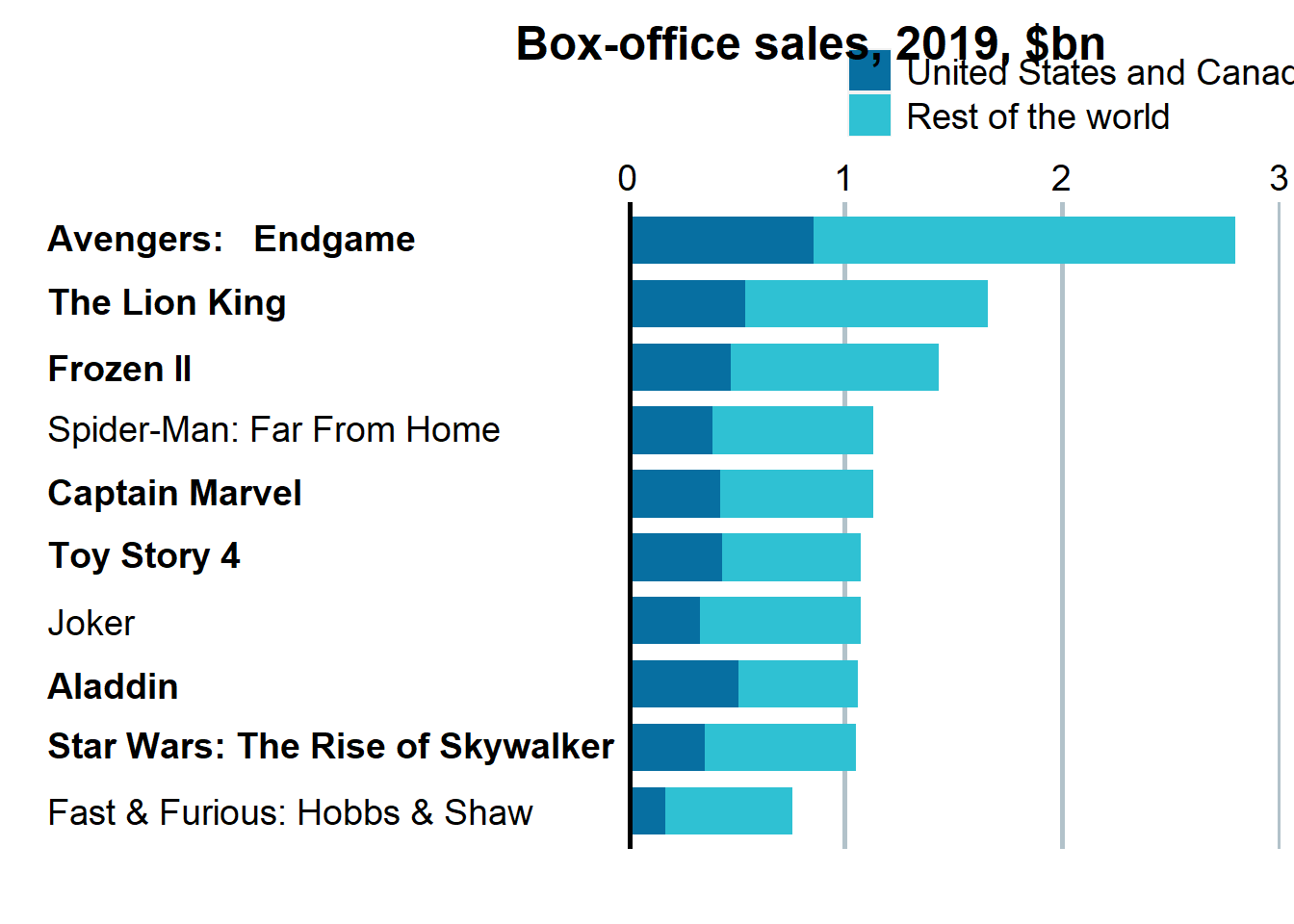
# apply theme
plot_bar <- plot_bar +
  
  theme(
    
    legend.title = element_blank(),
    legend.direction = "vertical",
    legend.box = "horizontal",
    legend.position = c(0.7,1.18),
    legend.text = element_text(size = 14),
    
    panel.background = element_blank(),
    panel.grid.minor = element_blank(),
    panel.grid.major.x = element_line(color = "#B2C2CA", size = 1),
    panel.grid.major.y = element_blank(),
    
    plot.title = element_text(face = "bold", size = 18, hjust = -2.32, vjust = -0.1),

    axis.text = element_text(color = "black"),
    axis.ticks = element_blank(),
    axis.text.y = element_text(hjust = 0, size = 14),
    axis.text.x = element_text(size = 14),
    
    text = element_text(family = "Calibri")
   
  )

# edit legend title and labels
plot_bar <- plot_bar + 
   scale_fill_manual(values = c("#076fa1","#2fc1d3"), # color for the fill
                     name = "\n", # no title, only empty line
                     labels = c("United States and Canada", 
                                "Rest of the world"))

plot_bar
## Save Plot

After all of the visualization steps above were done, we can save the plot into a png file. To apply an arrow “>” symbol, because ggplot haven’t yet provide feature to accomodate it, we can apply it using grob text. And here below the result.

 1
 2
 3
 4
 5
 6
 7
 8
 9
10
11
12
13
14
15
16
17
18
19
20
21
22
23
24
25
26
27
28
29
30
31
32
33
34
35
36
# prepare file
png("bar.png", width = 7, height = 5.5, units = "in", res = 300)

# make file (RUN ALL)
plot_bar
grid.rect(x = 0.064, y = 0.98,
          hjust = 1.1, vjust = 0,
          width = 0.05,height = 0.01,
          gp = gpar(fill="#353535",lwd=0))
grid.text("Disney",
          x=0.038, y=0.82, vjust = 0, hjust=0,
          gp=gpar(col="#99404f", fontsize=14, fontfamily="Calibri", fontface="bold"))
grid.text(">",
          x=0.01, y=0.76, vjust = 0, hjust=0,
          gp=gpar(col="#99404f", fontsize=12, fontfamily="Calibri", fontface="bold"))
grid.text(">",
          x=0.01, y=0.7, vjust = 0, hjust=0,
          gp=gpar(col="#99404f", fontsize=12, fontfamily="Calibri", fontface="bold"))
grid.text(">",
          x=0.01, y=0.62, vjust = 0, hjust=0,
          gp=gpar(col="#99404f", fontsize=12, fontfamily="Calibri", fontface="bold"))
grid.text(">",
          x=0.01, y=0.47, vjust = 0, hjust=0,
          gp=gpar(col="#99404f", fontsize=12, fontfamily="Calibri", fontface="bold"))
grid.text(">",
          x=0.01, y=0.4, vjust = 0, hjust=0,
          gp=gpar(col="#99404f", fontsize=12, fontfamily="Calibri", fontface="bold"))
grid.text(">",
          x=0.01, y=0.25, vjust = 0, hjust=0,
          gp=gpar(col="#99404f", fontsize=12, fontfamily="Calibri", fontface="bold"))
grid.text(">",
          x=0.01, y=0.18, vjust = 0, hjust=0,
          gp=gpar(col="#99404f", fontsize=12, fontfamily="Calibri", fontface="bold"))

# finish
dev.off()

Second Plot (Line Plot)

Data Wrangling

Before making a visualization, let’s prepare and clean the data:

1
2
3
# read data
market_shares_disney <- read_csv("data_input/rplicate6/Disney Market Shares.csv")
head(market_shares_disney)
 1
 2
 3
 4
 5
 6
 7
 8
 9
10
11
#> # A tibble: 6 × 8
#>    Year `Movies in Release` `Market Share` Gross          `Tickets Sold`
#>   <dbl>               <dbl> <chr>          <chr>                   <dbl>
#> 1  1995                  38 19.04%         $1,012,034,105      232651499
#> 2  1996                  37 20.76%         $1,197,737,813      270981385
#> 3  1997                  33 13.93%         $885,889,269        193004183
#> 4  1998                  28 16.38%         $1,109,009,676      236462602
#> 5  1999                  30 16.95%         $1,244,033,523      244888472
#> 6  2000                  28 14.75%         $1,111,156,845      206151531
#> # ℹ 3 more variables: `Inflation-Adjusted Gross` <chr>,
#> #   `Top-Grossing Movie` <chr>, `Gross that Year` <chr>

We will drop some columns and filter some data:

1
2
3
4
5
6
data_market_shares <- market_shares_disney %>% 
  select(year = Year, 
         market_share = 'Market Share') %>% # rename into easier format for plotting
  filter(year !='2020')

head(data_market_shares, 3)
1
2
3
4
5
6
#> # A tibble: 3 × 2
#>    year market_share
#>   <dbl> <chr>       
#> 1  1995 19.04%      
#> 2  1996 20.76%      
#> 3  1997 13.93%

Now, we will replace special character “%” into a blank space and convert the Market Share data into its correct data type.

1
2
3
4
data_market_shares[2]<- lapply(data_market_shares[2], function(x) gsub('\\%','',x))
data_market_shares[2]<- lapply(data_market_shares[2], as.numeric)

head(data_market_shares, 3)
1
2
3
4
5
6
#> # A tibble: 3 × 2
#>    year market_share
#>   <dbl>        <dbl>
#> 1  1995         19.0
#> 2  1996         20.8
#> 3  1997         13.9

Create Visualization

1
2
3
4
5
6
# creating plot
plot_line <- ggplot(data = data_market_shares, 
                    aes(x = year, y = market_share, group = 1)) + # group 1 to make 1 line
  geom_line(color = "#99404f", size = 2.2) + labs(x = "", y = "")

plot_line

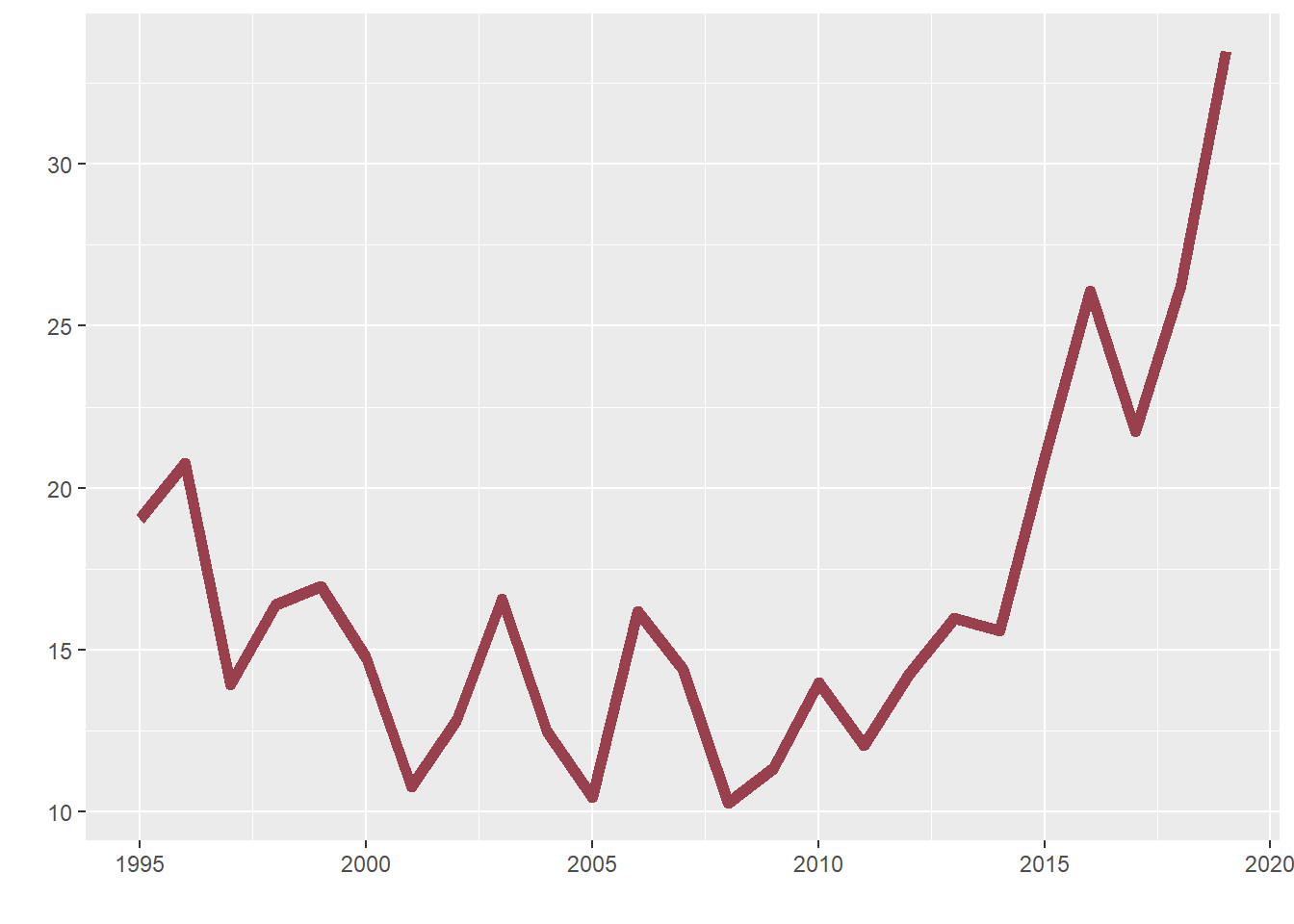
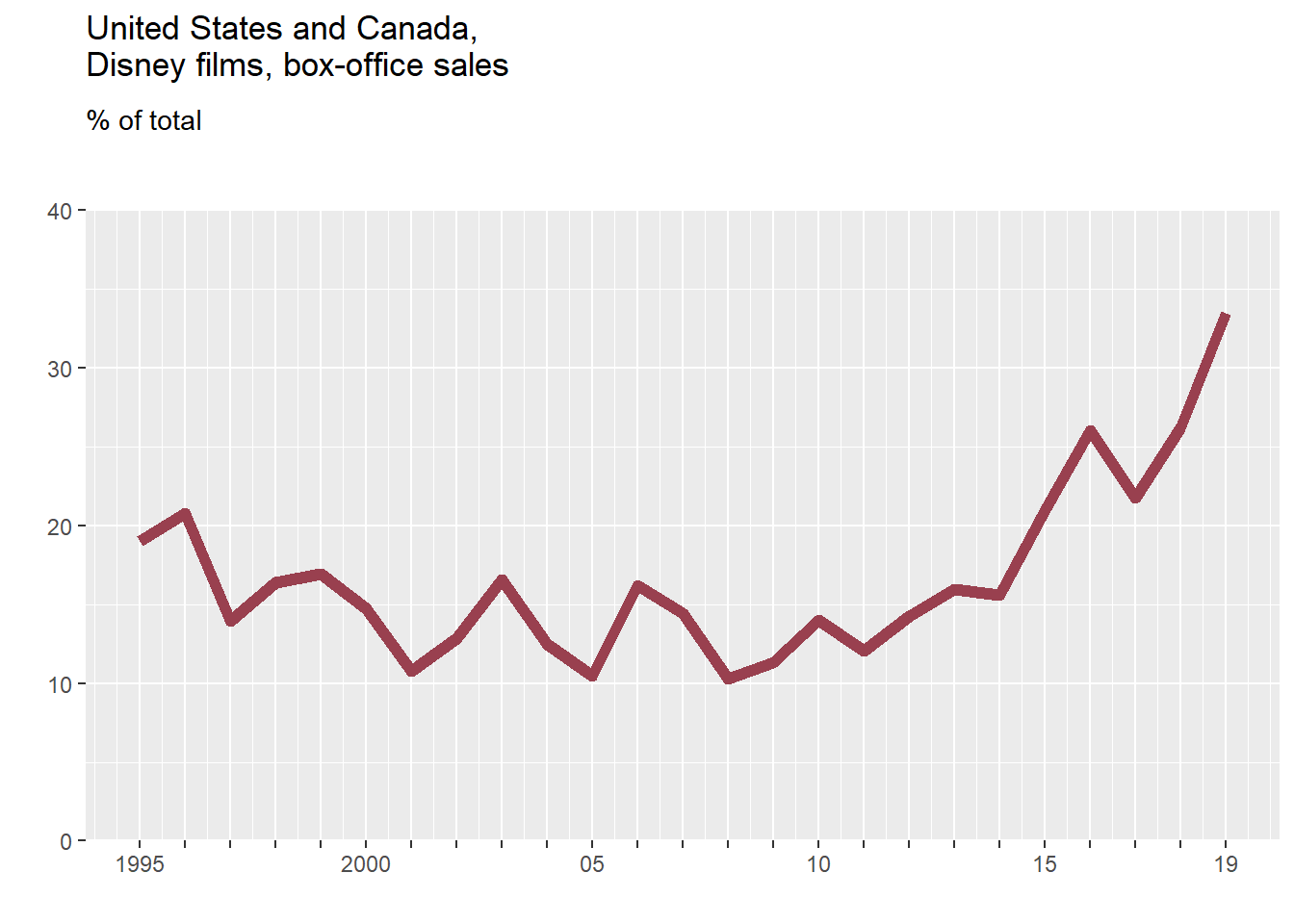
We need to declare the axis text and add some title and subtitle inside the plot, here is the code below:

 1
 2
 3
 4
 5
 6
 7
 8
 9
10
11
12
plot_line <- plot_line +
  scale_y_continuous(limit = c(0,40),
                    expand = c(0,0))+
  scale_x_continuous(breaks = seq(1995,2019,by=1),
                     labels = c("1995", rep("",4), # rep to add repetitive blank space 4 times
                                "2000", rep("",4), "05", rep("",4), 
                                "10", rep("",4), "15", rep("",3), "19")) +
  labs(title = "United States and Canada, \nDisney films, box-office sales \n\n",
       subtitle = expression(paste("% of total \n\n"))) +
  coord_cartesian(clip = "off")

plot_line

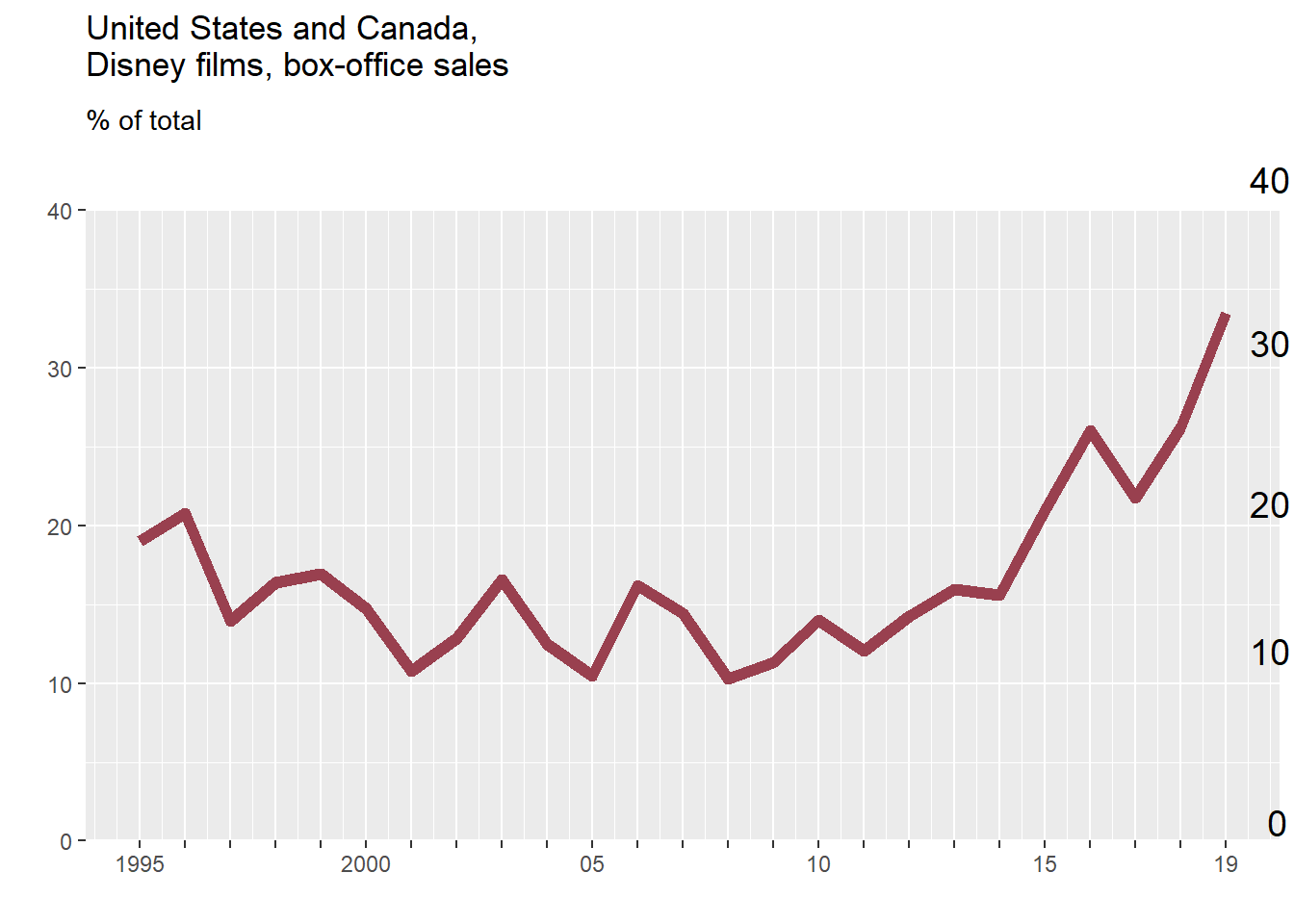
Next, we need to customize y-axis text using grob text, because text needs to be put inside the plot:

 1
 2
 3
 4
 5
 6
 7
 8
 9
10
11
12
13
14
15
16
17
18
19
label_0 <- grobTree(textGrob("0", x=0.99,y=0.03, hjust=0,
                             gp=gpar(col="black", fontsize=14)))
label_10 <- grobTree(textGrob("10", x=0.975,y=0.302, hjust=0,
                              gp=gpar(col="black", fontsize=14)))
label_20 <- grobTree(textGrob("20", x=0.975,y=0.535, hjust=0,
                              gp=gpar(col="black", fontsize=14)))
label_30 <- grobTree(textGrob("30", x=0.975,y=0.79, hjust=0,
                              gp=gpar(col="black", fontsize=14)))
label_40 <- grobTree(textGrob("40", x=0.975,y=1.049, hjust=0,
                              gp=gpar(col="black", fontsize=14)))

plot_line <- plot_line +
  annotation_custom(label_0) +
  annotation_custom(label_10) +
  annotation_custom(label_20) +
  annotation_custom(label_30) +
  annotation_custom(label_40)

plot_line

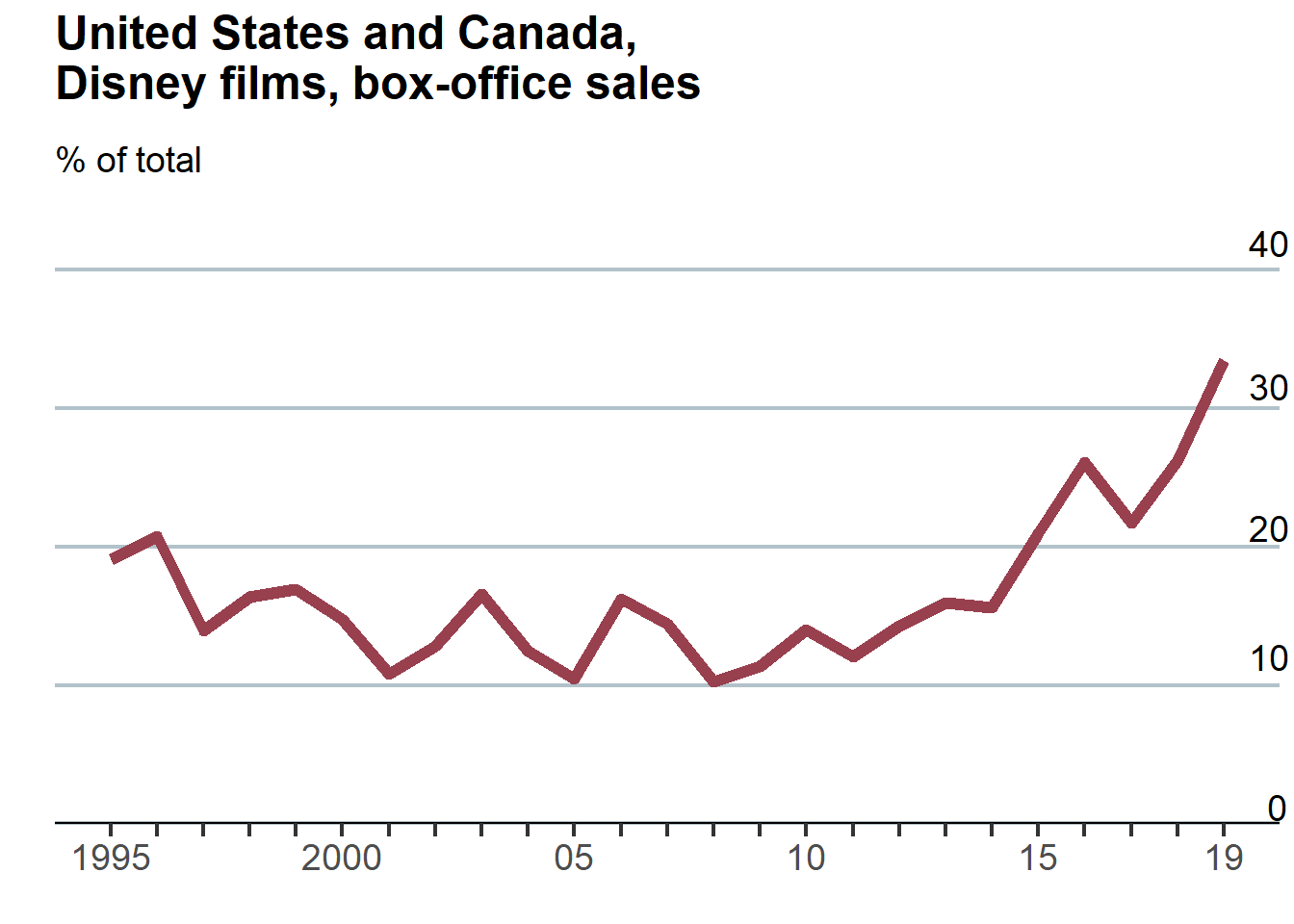
Then, we can add theme into the plot:

 1
 2
 3
 4
 5
 6
 7
 8
 9
10
11
12
13
14
15
16
17
18
19
20
21
22
23
24
plot_line <- plot_line +
  
  theme(
    text = element_text(family = "Calibri"),
    axis.text = element_text(size = 14),
    axis.line.x = element_line(color = "black", size = 0.5),
    
    panel.background = element_blank(),
    panel.grid.minor = element_blank(),
    panel.grid.major.x = element_blank(),
    panel.grid.major.y = element_line(color = "#B2C2CA", size = 0.8),
    
    axis.ticks.y = element_blank(),
    axis.ticks.x = element_line(size = 0.75),
    axis.ticks.length.x = unit(5, "pt"),
    axis.text.y = element_blank(),
    
    plot.title = element_text(family = "Calibri", face = "bold", 
                              size = 18, hjust = 0, vjust = 1),
    plot.subtitle = element_text(family = "Calibri", size = 14,hjust = 0, vjust = 1)
    
  )

plot_line

Save Plot

After all of the steps were done, we can save the plot into png file:

 1
 2
 3
 4
 5
 6
 7
 8
 9
10
11
12
13
# prepare file
png("line.png", width = 5.6, height = 5.5, units = "in", res =300)

# make file (RUN ALL)

plot_line
# adding additional box for final touch
grid.rect(x = 0.078, y = 0.99,vjust = 0.2,
          width = 0.05,height = 0.01,
          gp = gpar(fill="#353535",lwd=0))

# finish
dev.off()

Combine Plots

In this finishing step, we will combine two plot into one plot and add plot accessories like caption and header.

 1
 2
 3
 4
 5
 6
 7
 8
 9
10
11
12
13
14
15
16
17
18
19
20
21
22
23
24
25
26
27
28
29
30
31
32
33
34
35
36
37
38
# prepare file
png("plot.png", width = 14, height = 8, units = "in", res = 300)

# make plot 
## read previously made png file
bar_plot <- rasterGrob(as.raster(readPNG("bar.png")),interpolate = FALSE)
line_plot <- rasterGrob(as.raster(readPNG("line.png")),interpolate = FALSE)
spacing <- rectGrob(gp = gpar(col = "white")) # prepare space

## arrange plots 
grid.arrange(bar_plot, spacing, line_plot, 
             ncol = 3, # arrange into column wise; 3 columns
             widths = c(0.52,0.025,0.4))

# add accessory rectangle/line
grid.rect(x = 1, y = 0.995,
          hjust = 1, vjust = 0.02,
          height = 0.01,
          gp = gpar(fill = "#E5001c", lwd=0))
grid.rect(x = 0.04, y=  0.98,
          hjust = 1, vjust = 0.01, height = 0.05,
          gp = gpar(fill= "#E5001c", lwd = 0))
# title 
grid.text("Marvellous",
          x = 0.005, y = 0.93, vjust = 0, hjust = 0,
          gp = gpar(col = "black", fontsize = 28, fontfamily = "Calibri",
                    fontface = "bold"))
# caption
grid.text("Source: The Numbers; Box Office Mojo",
          x = 0.01, y = 0.145, vjust = 0, hjust = 0,
          gp = gpar(col = "#5E5E5E", fontsize = 14, fontfamily = "Calibri"))
grid.text("The Economist",
          x = 0.01, y = 0.1, vjust = 0, hjust = 0,
          gp = gpar(col = "#5E5E5E", fontsize = 15,
                    fontfamily = "Calibri", fontface = "bold"))

# finish
dev.off()

Finally, here is the final replicated plot using ggplot2! Looks nice!

Built with Hugo
Theme Stack designed by Jimmy